
How to Quickly Create Color Variations in Adobe Illustrator
The choice of the color palette is very important for any graphic design or illustration project.
With Adobe Illustrator’s “Recolor Artwork” command, you can:
-
Adjust and refine just a few colors
-
Completely change the color palette.
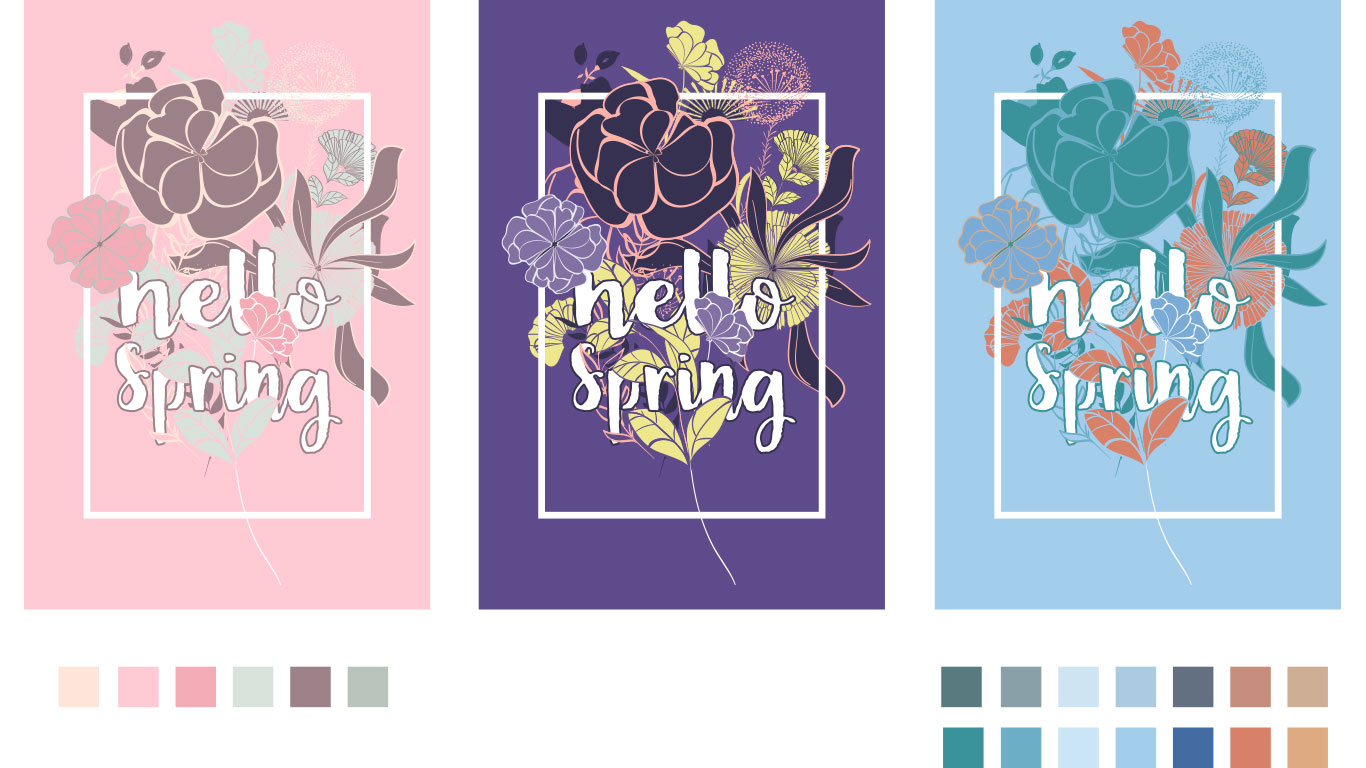
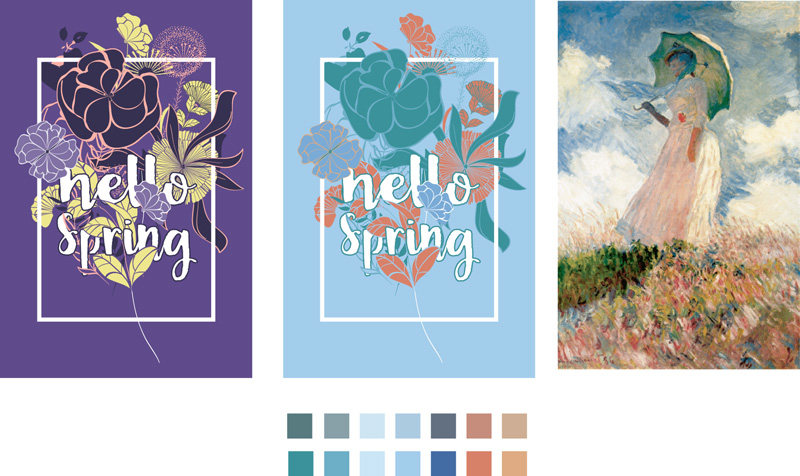
As you can see in the illustrations below, I changed colors by quickly applying a different color palette without having to select every single shape, even without the use of “Global Swatches” in the document.

Choosing a Palette to Create Color Variations
Before using “Recolor Artwork,” you can create a “Color Group” in the “Swatches panel” to use later to replace the colors already utilized in the illustration.
I advise you, as a first step, to save a “Color Group” with the existing colors in the illustration before modifying it.
Select the entire project and click on the “New Color Group” icon, selecting “Selected Artwork.”
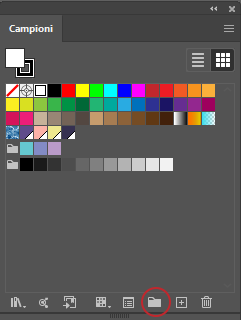
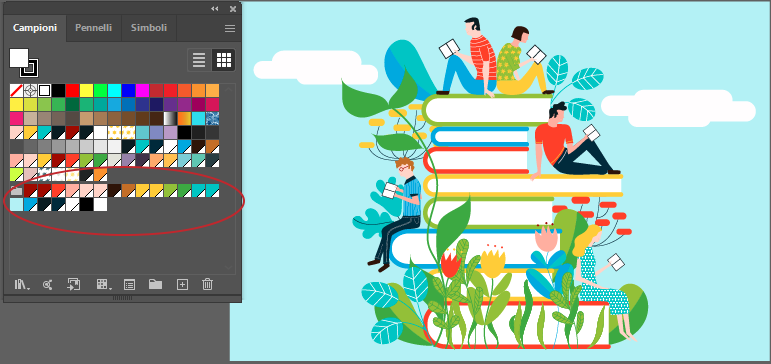
At this point, a new color group will be added within the Swatches panel. You will then also be able to check how many colors you have used and create a new palette with an adequate number of colors.
To choose the colors to use in my projects, I use various methods:
-
Instagram Profiles
-
Pinterest
-
Coolors
-
Adobe Color
-
Selection of paintings by my favorite painters.
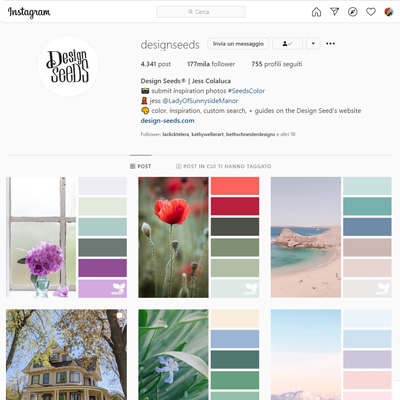
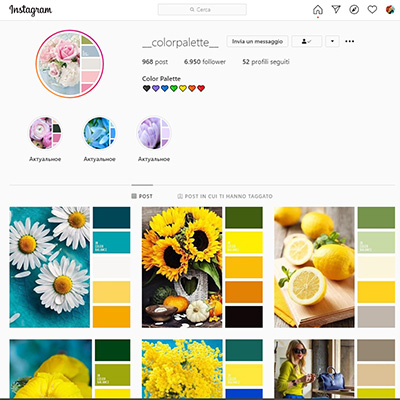
I follow some interesting Instagram profiles specifically for color palettes:
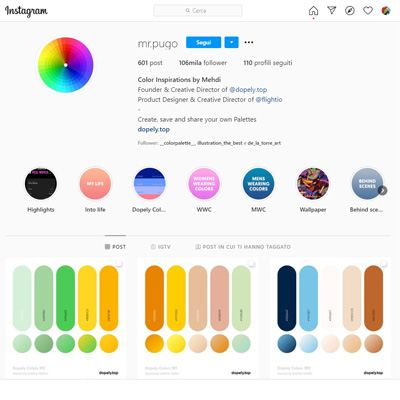
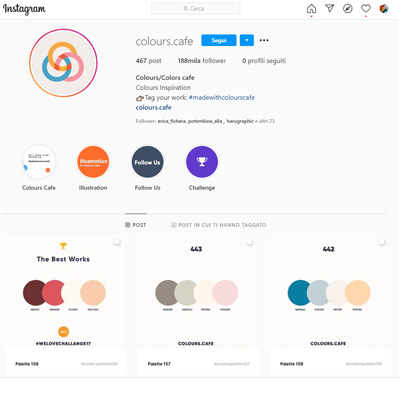
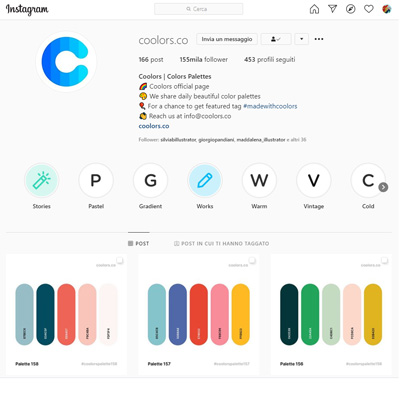
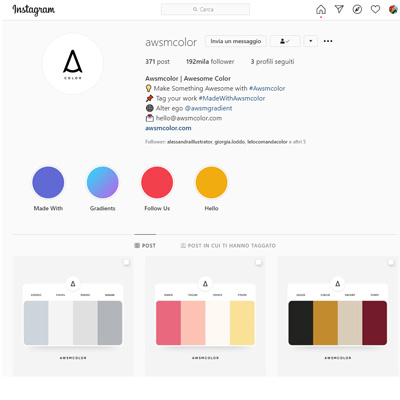
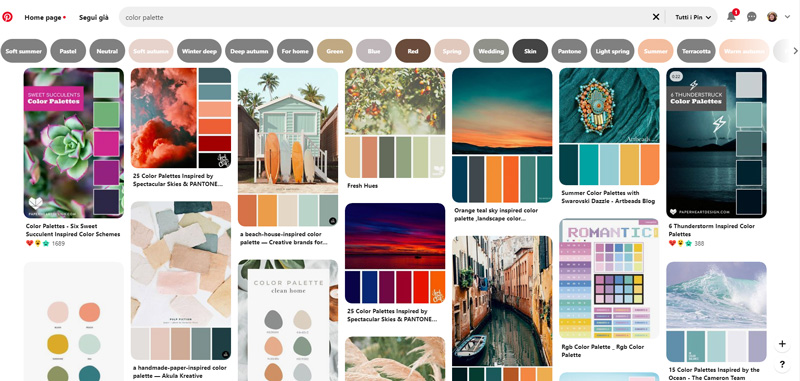
With Pinterest, on the other hand, I use “Color Palette” as the search term to view various images with their corresponding color palettes. I can also search based on a specific color (“Orange colors palette”) or a season (“Spring color palette”).
To save the colors I find on WEB pages, such as Pinterest, I use a Chrome and/or Firefox extension called ‘ColorZilla,’ which allows me to copy the color in hexadecimal format and paste it into the ‘Color Picker’ window of Illustrator and/or Photoshop to save it in the swatches or the CC Library so that I can use it with all software in the Adobe Suite.”
Adobe Color & Adobe Capture App
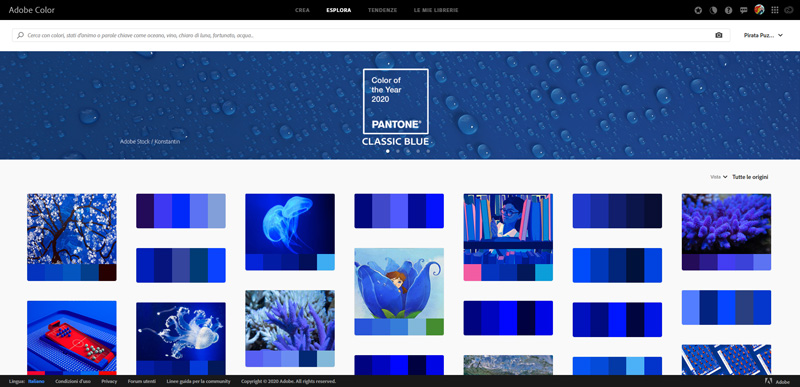
The Adobe Color website allows you to browse various proposals, upload your own image to extract the main colors from it, and save them to your CC Library or download the color palette to use in the Suite.
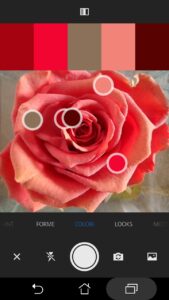
The Adobe Capture app, available for Android and iOS, allows you to extract colors on the go, using photos taken instantly.
Among other things, it also allows you to recognize a photographed font, create a pattern from a photo, trace vector shapes from photographed objects, extract textures to use for 3D object materials, etc.
Coolors.co
Coolors.co is exactly what I use most, perhaps because it allows for easier and faster control of the palette and also allows for quickly adding more colors, rather than just the usual 4 or 5 as in other cases. In an illustration, the base colors are often few (4 or 5), but ultimately, to be able to add highlights and shadows, the number of colors very often increases, or in any case, 5 colors are often not enough.
So, on this website, which I later discovered was created by an Italian designer 🙂 Fabrizio Bianchi, it is possible to:
-
Extract colors from your own photo
-
Explore color palettes published in the online catalog
-
Customize your palette by adding or modifying colors.
At the end of the work, you can download a color palette in .ase format, compatible with Adobe software.
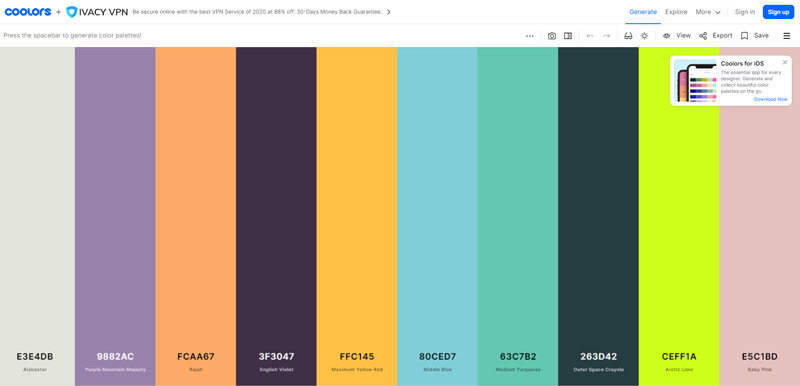
I used this very palette to modify this illustration:
I often start from paintings by my favorite artists as well: for example, in the color variation below, I used a Monet painting, slightly customizing the color saturation.
Create Color Variations with Recolor Artwork
Once you have chosen your color palette and saved the Color Group or the color palette as an external library (.ase), you can use the “Recolor Artwork” command.
Select all the paths that make up the illustration or graphic design project and click on the color wheel icon in the control bar, or choose from the menu Edit → Edit Colors → Recolor Artwork.
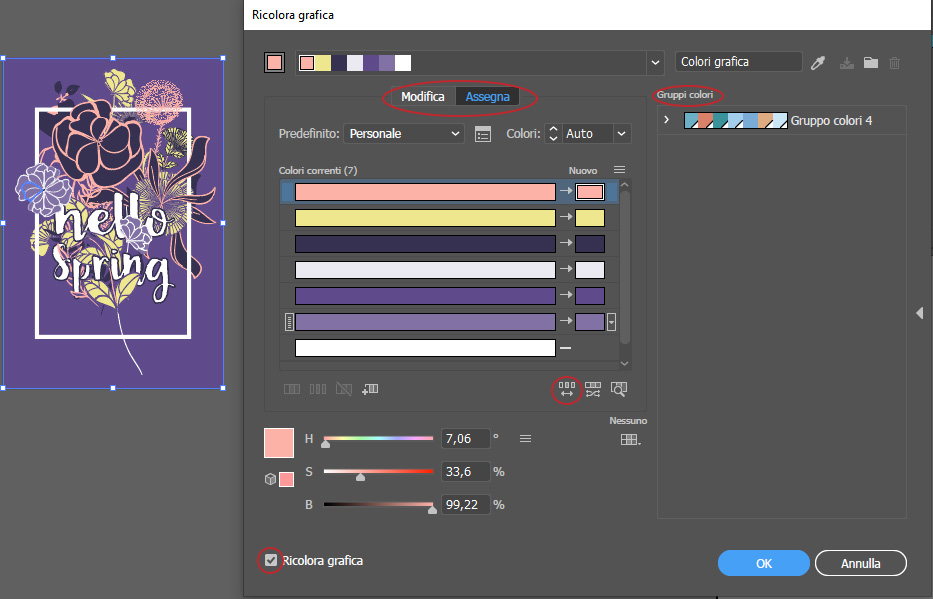
So, summarizing:
-
Create a new Color Group in the Swatches panel using a number of colors similar to the current ones.
-
Select all the paths of the illustration and click the “Recolor” button in the “Properties” panel.
-
Click on the Color Group found on the right side of the window.
-
Adjust by changing the automatic color association if necessary.
-
Done! 🙂
Watch the video at the bottom of the page to see the creation of my illustration using the procedure I just explained, and if you have any doubts or questions, write to me in the comments.
If you want to see how I create my vector illustrations from sketch to coloring, read this article: From Sketch to Final Vector Illustration with Adobe Illustrator Tools
Happy work and, as always, have fun!




Want to stay updated on upcoming articles? Follow me on social media