
Here I am with the first tutorial on my personal blog. 🙂
In my portfolio, you can find some examples of Pattern Design, and some of these were created starting from watercolor on paper.
I love watercolor because it doesn’t require much initial preparation, you can easily paint outdoors, outside the studio, and it allows you to create beautiful gradients and even unpredictable effects. To use my watercolor drawings in a different and versatile way, I also like to digitize them and use them for prints on gadgets, bags, fabrics.
If you also want to use your drawings on paper, watercolor or otherwise, in a different way, read the tutorial.
Do you like drawing with Photoshop and want to learn how to create a pattern in Photoshop from a drawing or a watercolor?
Let’s learn how to create a seamless pattern, a pattern that repeats without visible joins!
Note: The video above shows all the steps described in the article. But if you want to better understand certain steps, I recommend reading the text.
A different way to use your illustrations
Digitizing and turning your drawings into patterns allows you to use your illustrations in various ways: personalize fabrics, cushions, blankets, clothes and accessories, tote bags, and much more. Of course, you can also create everything directly in Photoshop, but creating a truly realistic watercolor effect digitally is not easy. Plus, this way, you can reuse your illustrations already done on paper in a different way.
Digitize the drawing and unify the background
In this case, I created a series of small watercolor cat drawings. The first step is to scan them or, as I did, take a high-resolution photo.
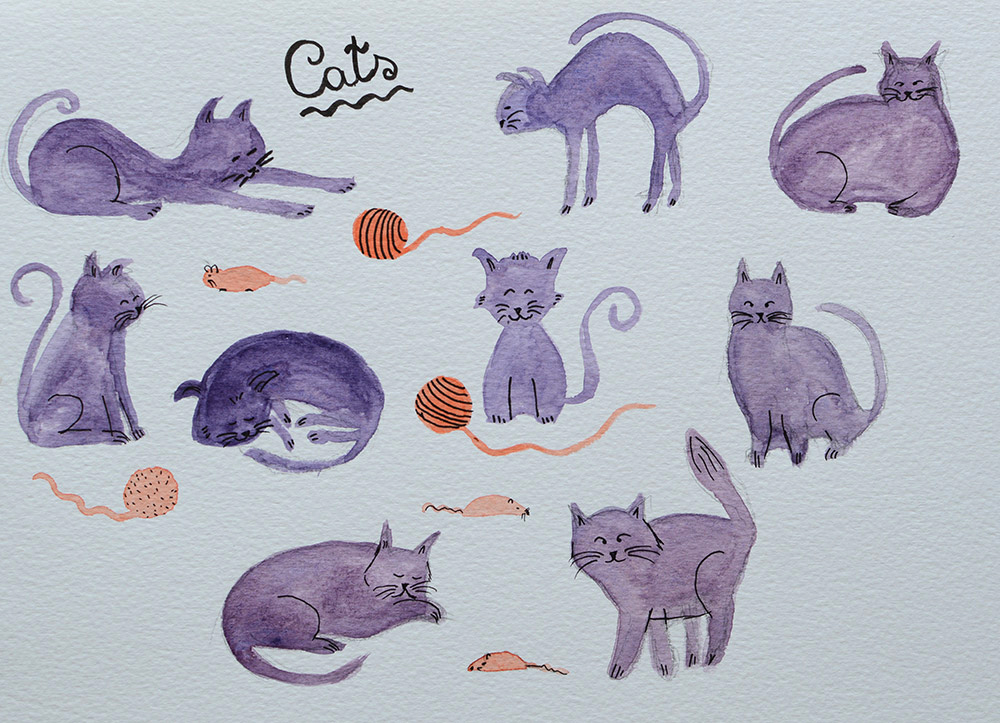
The next step is to make the background white so you can isolate the subjects and move/duplicate them without any problems. Open your image in Photoshop and use the Image > Adjustments > Levels command to lighten the image.
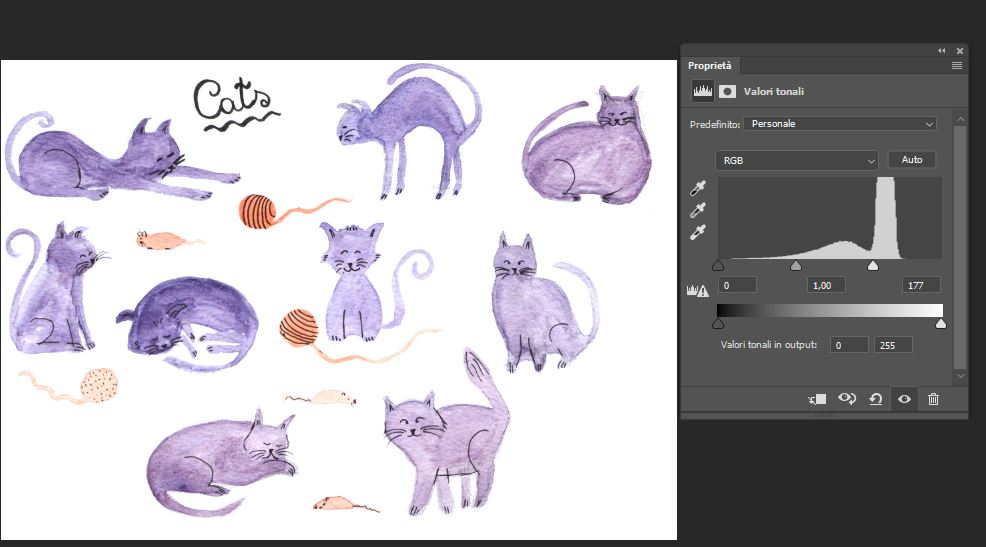
At this point, you can use the Eraser tool to remove any remaining imperfections on the background or around the objects.
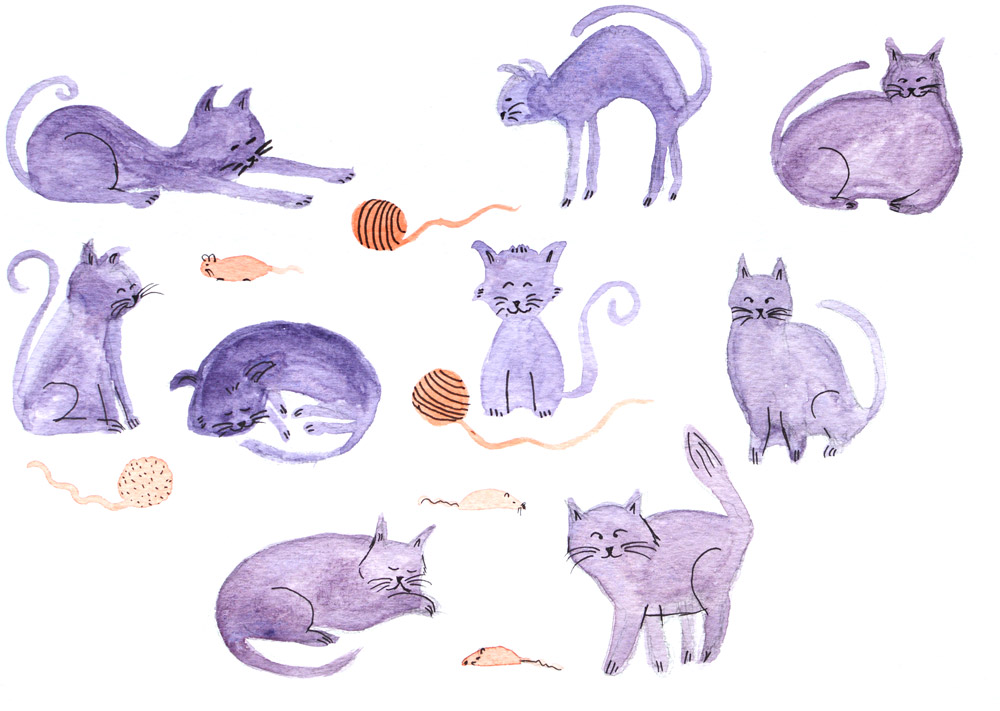
Great! Your image is now ready to be transformed into a repeatable module.
What is a pattern and how to create one
To make any image a seamless, repeatable pattern, we need to manually work on the edges so that side A matches side C and side B matches side D. Only in this way can your image be tiled to fill areas of varying size without visible seams.
Let’s start with a simple graphic element, like a green circle. Once transformed into a pattern, you can use it in Photoshop as a fill for objects, replicating the original graphic in rows (or multiple rows, depending on the size of the area to fill), just like when using a texture.
The Photoshop Offset Filter
To adjust the image so the edges align correctly, use Filter > Other > Offset in Photoshop. This filter allows you to move part of the image horizontally and/or vertically. Photoshop effectively splits the image in half and shifts it, ensuring that sides B and D align perfectly as they have been cut and repositioned from the center.
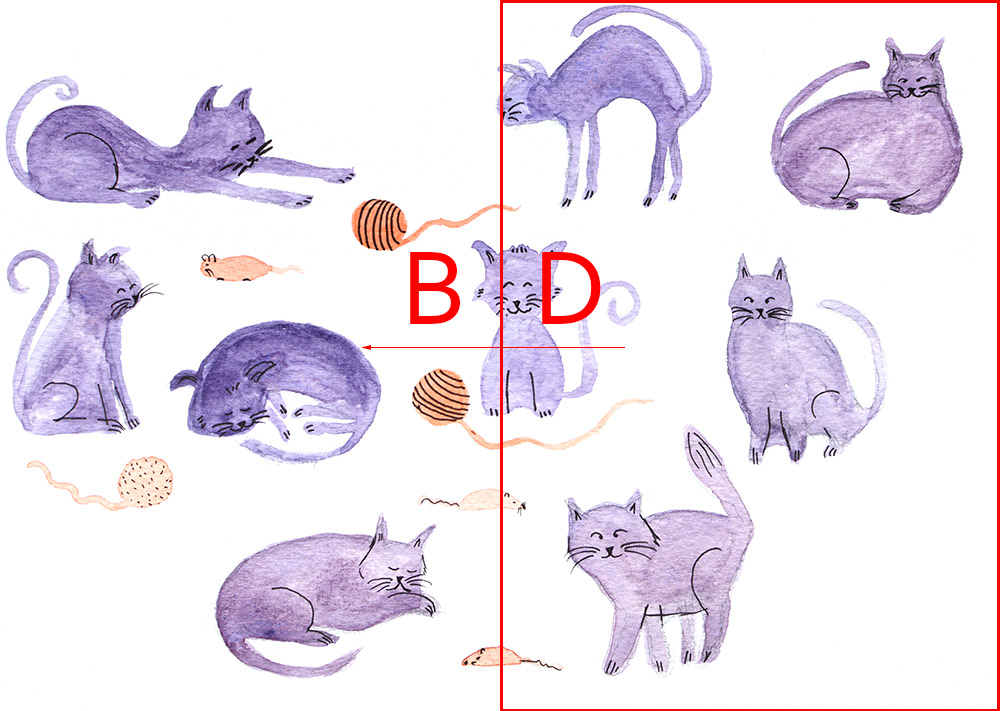
Original image
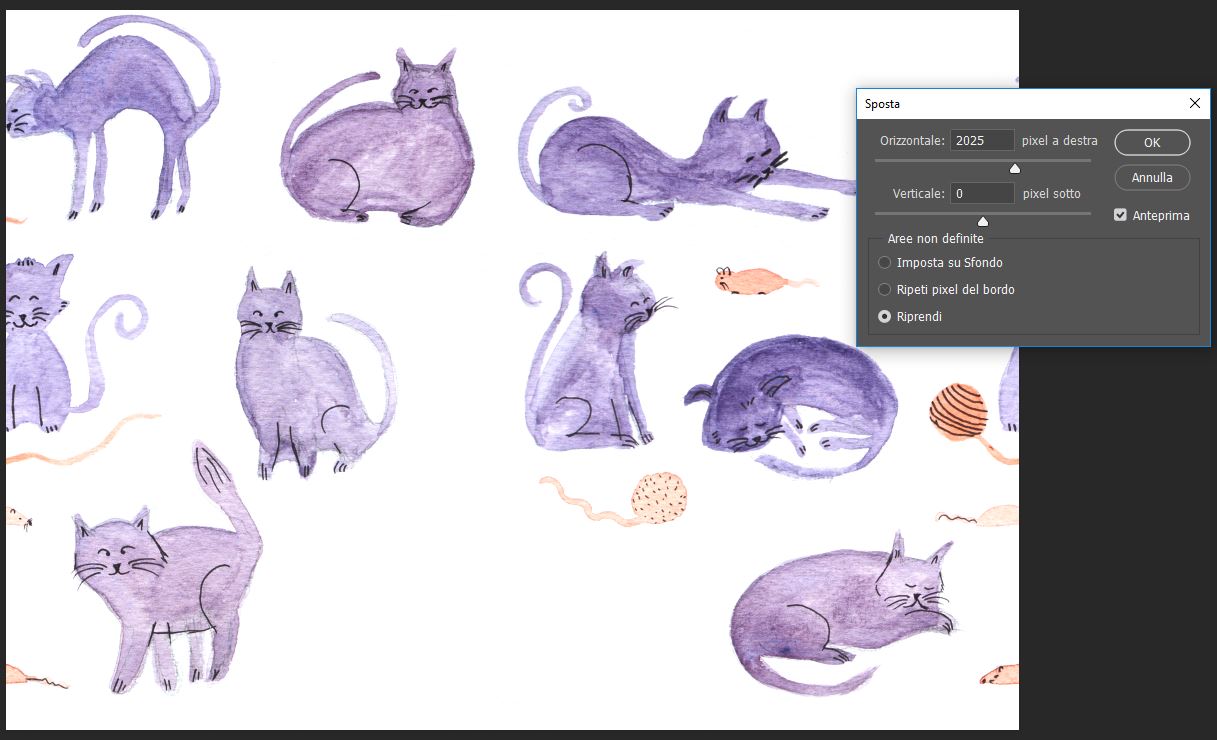
First step with Offset Filter in Photoshop
Check the width and height of your image and divide them by 2. In my case, the width was 4880 px, so I used the Offset filter with the vertical offset set to 0 and the horizontal offset set to 2440 px (half of the width).
Make sure to check the Wrap Around option before clicking OK.
Repeat the same procedure for the vertical direction: set the horizontal offset to 0 and the vertical offset to half of your image’s height in pixels.
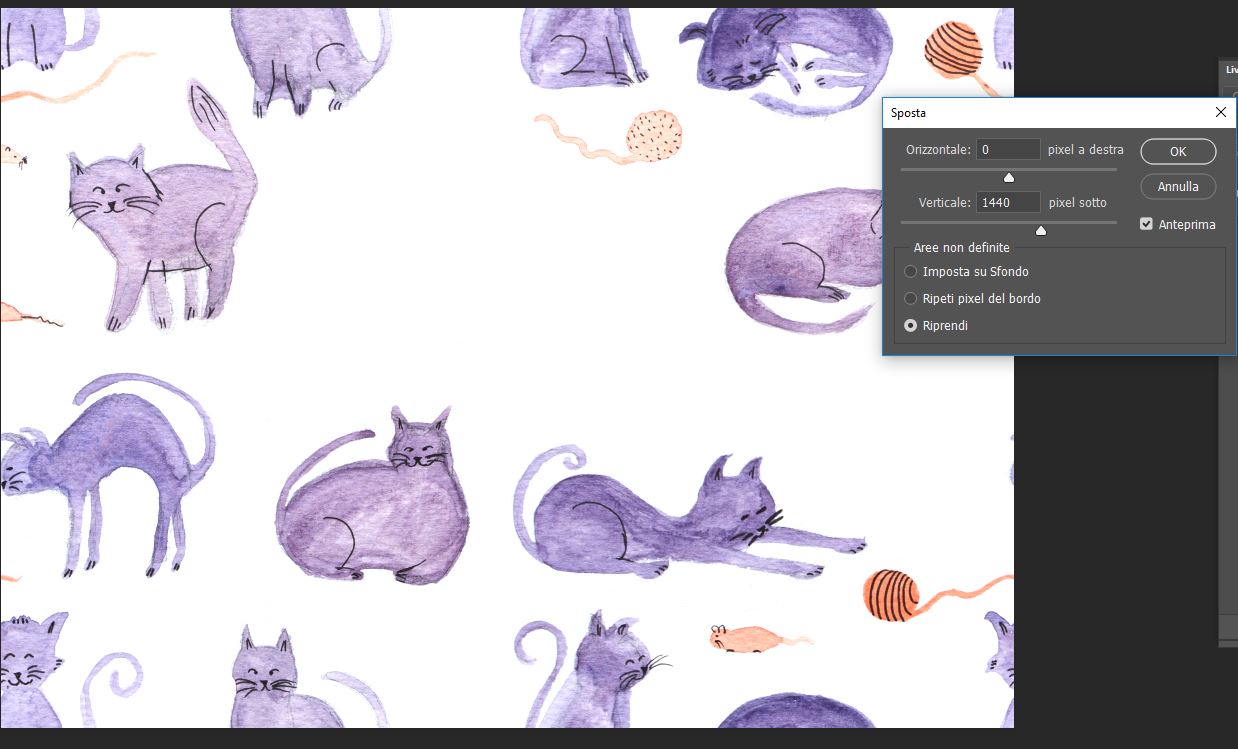
Now, select some elements from your original image and copy/paste them into the empty center area, maybe rotating, resizing, or slightly modifying them to make the pattern more varied.
Export and use the pattern
Perfect! Now you can save the file as a JPEG and use your pattern in various graphic design software or have it printed on customized objects.
If you want to apply it as a Photoshop pattern, go to Edit > Define Pattern while your image is open and active. Once defined, the pattern can be used to fill selections, vector shapes, or text.
Have fun seeing it applied to bags, smartphone covers, or other items by downloading one of the many free mockups available online.
For example: https://www.mockupworld.co/free/pillowcase-mockup/#
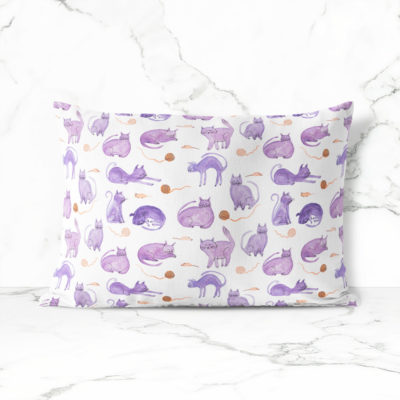
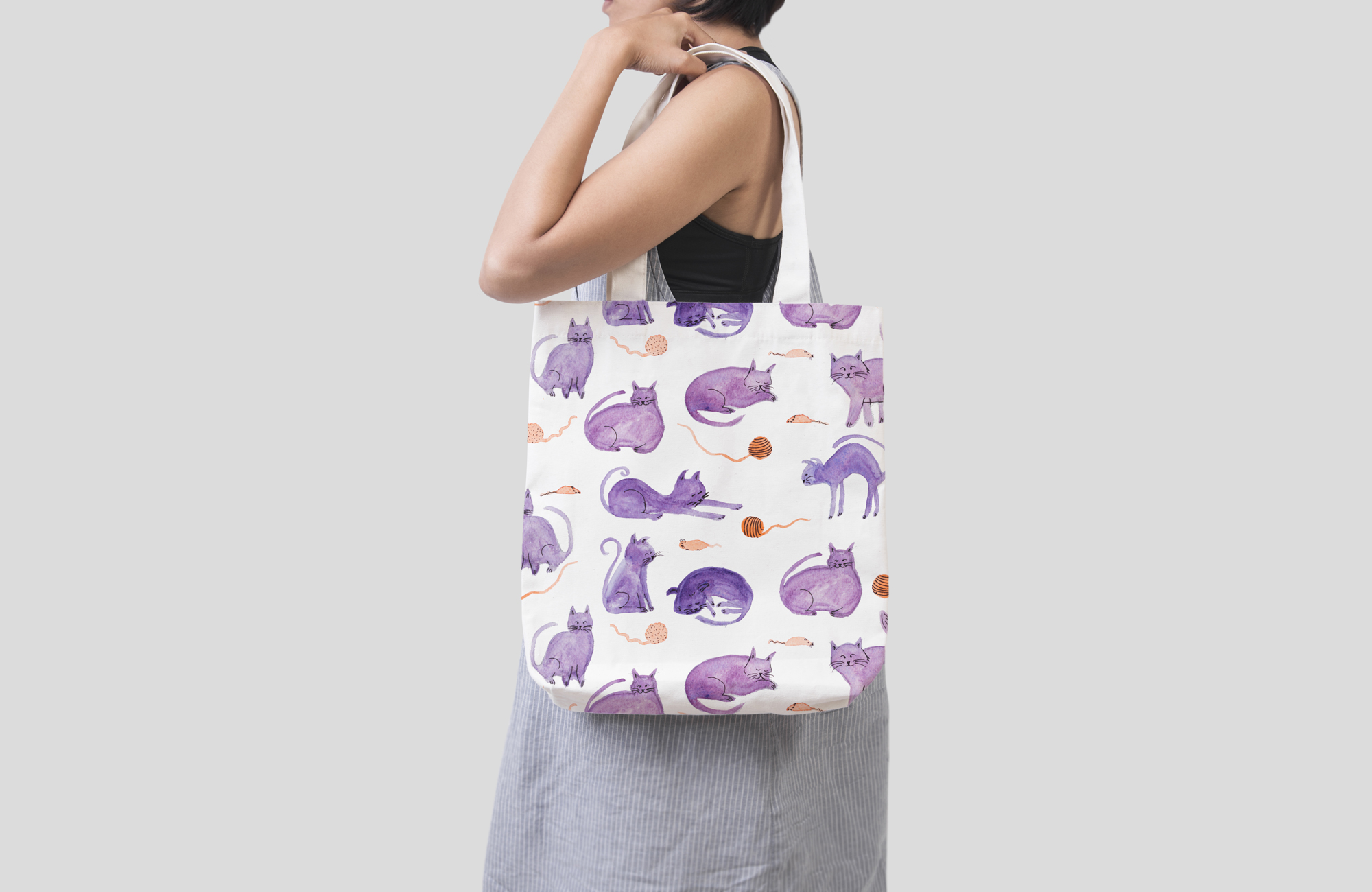
The mockups you find online, whether free or paid, are usually in PSD format and include a “Smart Object” layer that allows you to quickly insert your pattern.
If you have any questions or doubts, feel free to write them in the comments, and I’ll respond.
Barbara
.





Leave A Comment